A network adapter is the hardware that connects your computer, laptop, or server to a network. Without one, your device has no way to send or receive data over Ethernet, Wi-Fi, or fiber. Most people use network adapter, network interface card (NIC), and network card interchangeably-and for practical purposes, that is close enough. According to Wikipedia's NIC entry, the term covers both expansion cards and integrated controllers built into the motherboard.
If you landed on this page, you probably want more than a textbook definition. You may be trying to figure out whether your built-in adapter is the bottleneck, whether a USB dongle is good enough, or what to check when your connection keeps dropping. This guide covers all of that-types, selection, installation, and troubleshooting-so you can make an informed decision rather than guess.

What Does a Network Adapter Actually Do?
A network adapter converts the data your device generates into a format that can travel over a specific medium-copper Ethernet cable, radio waves, or fiber optic patch cord-and converts incoming signals back into data your operating system can process. Every adapter carries a unique MAC address, a 48-bit hardware identifier assigned during manufacturing, which helps routers and switches direct traffic to the correct device on a local network. The IEEE 802.3 standard defines how Ethernet NICs handle media access control, frame formatting, and physical-layer signaling at speeds from 10 Mbps to 400 Gbps.

Beyond basic data conversion, many adapters handle packet buffering, error detection through frame check sequences, and basic traffic management. Higher-end NICs used in servers may offload TCP processing from the CPU (a feature commonly called TCP Offload Engine), support multiple transmit and receive queues, or provide hardware-level interrupt distribution to spread workload across CPU cores. These features matter in data centers and storage networks; for typical home or office use, the built-in adapter usually covers these functions well enough.
One point that catches many people off guard: a perfectly functional adapter can still perform badly if the driver is outdated, corrupted, or incompatible with your operating system version. Before assuming the hardware is faulty, always check the driver first-this single step resolves a large share of "network adapter not working" complaints.
Common Types of Network Adapters

Ethernet (Wired) Adapters
An Ethernet adapter connects your device to a wired network through an RJ45 port and a copper cable. It is the strongest option when you need low latency, consistent throughput, and a connection that does not degrade because someone turned on a microwave. Desktops, workstations, gaming rigs, and office PCs almost always benefit from a wired connection. Most motherboards ship with a built-in Gigabit Ethernet (1 Gbps) port; newer boards increasingly include 2.5 Gbps or even 5 Gbps ports, which can matter if your local network and internet plan can take advantage of the extra bandwidth.
Wi-Fi (Wireless) Adapters
A Wi-Fi adapter connects your device to a wireless access point using radio frequencies. It is standard in laptops and tablets and is the practical choice wherever running cable is impractical-shared apartments, temporary setups, or buildings with older wiring. Actual wireless performance depends on the Wi-Fi standard (Wi-Fi 5, Wi-Fi 6, Wi-Fi 6E, or Wi-Fi 7), signal strength, interference from nearby networks, and the quality of both the adapter and the router. A Wi-Fi 6 adapter paired with a Wi-Fi 5 router will still operate at Wi-Fi 5 speeds-both ends of the link need to support the same standard to benefit from it.
USB Network Adapters
A USB adapter-either Ethernet or Wi-Fi-plugs into a USB port with no tools required. It is the fastest way to add a missing connection: a thin laptop with no Ethernet jack, a desktop that needs temporary wireless access, or a quick replacement when onboard hardware fails. USB 3.0 adapters can handle Gigabit Ethernet and Wi-Fi 5/6 without problems, but USB 2.0 models top out near 480 Mbps in theory and less in practice, which creates a bottleneck for anything above Fast Ethernet. USB adapters are convenient for short-term or portable use, but their small antenna size, potential for thermal throttling, and reliance on the USB bus make them a weaker long-term choice compared to internal cards.
PCIe Network Cards
A PCIe (PCI Express) network card installs inside a desktop or server via an expansion slot. It draws power directly from the motherboard, has room for larger antennas (on wireless models) or multiple Ethernet ports, and benefits from the PCIe bus, which offers significantly higher bandwidth and lower latency than USB. If you need a permanent upgrade-better wireless range, multi-gig Ethernet, or a second wired port-PCIe is the stronger path. The tradeoff is that installation requires opening the case, finding an available PCIe slot, and potentially installing a driver manually.
Fiber Optic and Server NICs
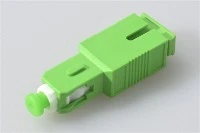
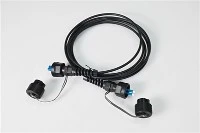
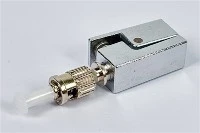
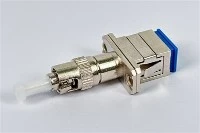
In data centers, enterprise server rooms, and high-performance computing environments, dedicated NICs connect through fiber optic cables rather than copper. These cards typically use SFP, SFP+, or QSFP28 transceiver modules-the choice of module determines the speed and fiber type. A fiber optic network adapter can support 10 Gbps, 25 Gbps, 40 Gbps, or 100 Gbps links depending on the card and transceiver. Multi-port configurations are common for redundancy and link aggregation. Choosing between single-mode and multimode fiber depends on the distance between endpoints and the required bandwidth. For more on the physical connection side, see this overview of fiber optic connectors and their types.
This category is far beyond what home users need, but understanding it matters if you manage infrastructure or purchase networking equipment for an organization.


Built-in vs. External Network Adapters: Do You Need an Upgrade?
Most modern computers ship with at least one built-in adapter-usually Gigabit Ethernet on desktops and Wi-Fi on laptops. Before buying anything, check whether the adapter you already have is actually the problem. Slow internet is often caused by the router, the ISP connection, a bad cable, or a congested Wi-Fi channel-not the NIC itself.

You probably do not need a new adapter if your built-in hardware matches your network speed, your connection is stable, and your use case has not changed. You probably do need one if your motherboard lacks Wi-Fi and you cannot run cable, if your Ethernet port is limited to 100 Mbps on a Gigabit network, if you need a second wired port for a dedicated VLAN, or if the onboard adapter has physically failed.
A common mistake is upgrading the adapter when the actual bottleneck is elsewhere. If your router only supports Wi-Fi 5, installing a Wi-Fi 7 adapter will not help. If your ISP plan tops out at 100 Mbps, a 2.5 Gbps Ethernet card only helps with local network transfers, not internet speed. Match the adapter to the weakest link in the chain, not just to the newest spec on the shelf.
USB vs. PCIe Network Adapter: Which Should You Choose?
This is one of the most common comparison questions, and the answer depends on what you prioritize.
Choose USB when you need a quick, portable, or temporary solution. A USB Wi-Fi adapter gets a desktop online in minutes without opening the case. A USB Ethernet adapter gives a thin laptop a wired port it otherwise lacks. USB adapters also work across multiple machines-you can move them between computers easily.
Choose PCIe when you want a permanent, higher-performance solution for a desktop or server. PCIe cards deliver better sustained throughput, lower latency, and-for wireless cards-stronger signal through larger, repositionable antennas. They do not occupy a USB port, do not rely on the USB controller, and are less likely to overheat under sustained load.
If you are adding Wi-Fi to a gaming desktop and plan to keep it at a fixed location, a PCIe Wi-Fi 6E card with external antennas is a materially better experience than a USB dongle. If you occasionally need Ethernet on a MacBook at a conference, a USB-C Gigabit adapter is the obvious choice. The decision is situational, not absolute.
Wired vs. Wireless: Matching the Adapter to Your Use Case
The choice between Ethernet and Wi-Fi is ultimately about what you are willing to trade. Wired connections offer lower latency, more consistent speeds, and immunity from wireless interference. Wireless connections offer mobility, simpler setup, and no cable routing. For a more detailed look at how fiber fits into this picture, see is fiber optic Ethernet or Wi-Fi.

Lean wired for desktops, gaming PCs, video editing workstations, VoIP phones, NAS devices, and any machine that stays in one place and handles large or latency-sensitive traffic.
Lean wireless for laptops, tablets, phones, and any device that moves between rooms or locations. Also appropriate for desktops in rooms where running an Ethernet cable is prohibitively difficult.
Use both when the workload demands it. Many professionals keep a wired connection for daily work and a Wi-Fi adapter as a fallback for portable use or when docking at a different desk. Servers and workstations in professional environments may bond multiple adapters for redundancy.
How to Choose the Right Network Adapter: A Practical Checklist
Selecting an adapter is less about finding the "best" product and more about matching the right specifications to your actual environment. Here is what to check:
1. Interface compatibility. Confirm your device has the right slot or port. PCIe x1 cards fit in any PCIe slot (x1, x4, x8, x16), but they require an open slot and enough physical clearance. USB adapters need a USB 3.0 port for Gigabit Ethernet or modern Wi-Fi speeds. Laptops generally only accept USB or Thunderbolt external adapters.
2. Network standard. Match the adapter to the network you are connecting to. There is no benefit to a 2.5 Gbps Ethernet adapter on a network where every switch port is 1 Gbps. Similarly, a Wi-Fi 6E adapter needs a Wi-Fi 6E router to use the 6 GHz band. For enterprise fiber environments, the NIC must match the SFP or SFP+ module type and the fiber cable category in use.
3. Operating system and driver support. Check that the adapter has a stable, actively maintained driver for your OS. Linux users should verify kernel support before purchasing. Windows users should confirm the manufacturer provides a driver compatible with their Windows version-driver issues after a major Windows update are a recurring problem.
4. Antenna quality (wireless only). USB dongles with tiny internal antennas work in small rooms near the router. For longer range or walls in between, look for PCIe cards or USB adapters with external, repositionable antennas.
5. Port count and advanced features (servers). Server NICs may offer dual or quad ports, SR-IOV for virtualization, RDMA for storage traffic, or wake-on-LAN support. Evaluate these against your workload requirements rather than buying features you will not use.
How to Install a Network Adapter?

USB Adapter Installation
Step 1: Plug the adapter into a USB 3.0 port (or USB-C, depending on the adapter).
Step 2: Wait for the operating system to detect the device. Windows 10 and 11 typically install a basic driver automatically.
Step 3: Check the manufacturer's website for a newer driver. The auto-installed driver works, but the manufacturer's version may enable additional features or fix known bugs.
Step 4: Confirm the adapter appears under Device Manager → Network adapters, and test the connection.
PCIe Card Installation
Step 1: Power off the computer, unplug the power cable, and ground yourself to avoid static discharge.
Step 2: Open the case, locate an available PCIe slot, remove the corresponding bracket cover, and seat the card firmly in the slot.
Step 3: If the card includes external antennas (wireless) or a network cable connection, attach them before closing the case.
Step 4: Power on the computer. Install the driver from the manufacturer's website or included disc. Verify the adapter shows up in Device Manager and test connectivity.
For fiber NICs in servers, the process is similar but also involves inserting the correct transceiver module (SFP+, QSFP28, etc.) and connecting the appropriate fiber cable. Make sure the transceiver, cable type (OM3, OM4, or single-mode), and NIC all support the same speed and wavelength.
How to Fix a Network Adapter That Is Not Working
Before replacing anything, work through these steps in order. Most adapter problems turn out to be software or configuration issues.
Step 1: Check physical connections
For Ethernet, confirm the cable is fully seated at both ends-the clip should click. Try a different cable and a different port on the switch or router. A cable that "mostly works" but has a damaged conductor can cause intermittent drops that look like an adapter problem. For USB adapters, try a different USB port; front-panel USB ports sometimes deliver less reliable power than rear ports directly on the motherboard. For fiber links, inspect the connector end faces and ensure the fiber connector is properly seated-contamination on the ferrule is a leading cause of fiber link failure. See also troubleshooting common issues in fiber optic networks.
Step 2: Verify adapter status in Device Manager
Open Device Manager (press Win + X and select it on Windows), expand Network adapters, and look for your adapter. A yellow exclamation mark means a driver or configuration problem. If the adapter is missing entirely, click View → Show hidden devices to check if it has been disabled. Right-click the adapter and select Enable device if it is disabled.
Step 3: Update or roll back the driver
Right-click the adapter in Device Manager, select Update driver, and choose Search automatically. If the issue started right after a Windows update or a driver update, select Properties → Driver → Roll Back Driver instead. Microsoft's Wi-Fi troubleshooting guide recommends downloading the latest driver directly from the PC manufacturer's website when automatic updates do not resolve the issue.
Step 4: Run the built-in Network troubleshooter
On Windows 11, go to Settings → System → Troubleshoot → Other troubleshooters → Network Adapter and click Run. On Windows 10, go to Settings → Network & Internet → scroll down to Network troubleshooter. The automated tool can detect and fix common misconfigurations.
Step 5: Reset network settings
If the adapter is detected but connections still fail, go to Settings → Network & Internet → Advanced network settings → Network reset. This removes all network adapters, restores default settings, and reinstalls them after restart. Use this as a later step-not the first thing you try-because it clears saved Wi-Fi passwords and custom configurations.
Step 6: Consider replacement
If the adapter repeatedly fails to be detected, disconnects under load, or no longer supports the speed you need, replacement is more practical than further troubleshooting. A USB Ethernet adapter can serve as a quick interim replacement while you order a PCIe card or wait for a warranty claim. If the onboard NIC on a laptop has failed, a USB adapter may be the only non-warranty option, since soldered components cannot be replaced by the user.
Common Mistakes and Misconceptions
"My internet is slow, so I need a better network adapter."
In most home setups, the adapter is not the bottleneck. The router, the ISP plan speed, Wi-Fi congestion, or a bad patch cable is far more likely to be limiting your speed. Check those first.
"A more expensive adapter always means faster internet."
Your internet speed is capped by your ISP plan. A 10 Gbps NIC will not make a 200 Mbps connection faster. The adapter only needs to match or exceed the speed of the network it connects to.
"Wi-Fi is always slower than Ethernet."
Under ideal conditions with Wi-Fi 6E or Wi-Fi 7 and a strong signal, wireless throughput can exceed Gigabit Ethernet. But real-world wireless performance varies with distance, obstacles, and interference. For consistent, latency-sensitive work, wired is still more reliable. For a deeper comparison in fiber environments, see is fiber optic better than Ethernet.
"The adapter driver doesn't matter much."
Drivers control how the operating system communicates with the hardware. A buggy or outdated driver can cause disconnects, speed drops, or failure to detect the adapter entirely. This is often the first thing worth checking.
Frequently Asked Questions
Is a network adapter the same as a NIC?
For all practical purposes, yes. Both terms refer to the hardware that connects a device to a network. Some technical documentation uses NIC specifically for the physical card and network adapter as a broader term that can include software-based virtual interfaces, but in everyday usage they mean the same thing.
Do all computers have a network adapter?
Most modern computers include at least one built-in adapter-typically Gigabit Ethernet on desktops and Wi-Fi on laptops. However, some ultra-compact desktops or specialty machines may omit one or both, requiring an external USB or PCIe adapter.
Can I add Wi-Fi to a desktop without opening the case?
Yes. A USB Wi-Fi adapter plugs into an external port and requires no internal installation. This is the simplest way to add wireless capability. For stronger range and higher throughput, a PCIe Wi-Fi card with external antennas performs better, but it does require opening the case.
Why is my network adapter connected but the internet is not working?
The adapter connecting successfully to a local network and having internet access are two separate things. Common causes include DNS misconfiguration, router-level issues, ISP outages, incorrect gateway settings, or firewall rules blocking traffic. Start with restarting the router, then check your IP configuration (run ipconfig on Windows or ifconfig / ip a on Linux) to confirm you have a valid IP address and gateway.
When should I replace a network adapter?
Replace when the adapter repeatedly fails to be detected after driver reinstallation, when it cannot maintain a stable connection under normal conditions, when it no longer supports the speed or standard your network requires, or when physical damage (bent pins, cracked USB connector, non-functional LED indicators) is visible.
What is the difference between a USB 2.0 and USB 3.0 network adapter?
USB 2.0 has a theoretical maximum bandwidth of 480 Mbps, which creates a bottleneck for Gigabit Ethernet or fast Wi-Fi. USB 3.0 supports up to 5 Gbps, easily handling Gigabit Ethernet and current Wi-Fi standards without bus-level constraints. If your adapter supports Gigabit speeds, always plug it into a USB 3.0 or newer port.
Do I need a fiber optic network adapter?
Only if your network infrastructure uses fiber cabling-typically in data centers, enterprise campuses, or long-distance links. Home and small office users almost always connect via copper Ethernet or Wi-Fi. If you are evaluating fiber, start with understanding what a fiber optic network adapter does and whether your switches and cabling support it.
Ready to Build a More Reliable Fiber Optic Network with EVOLUX?

At EVOLUX, we go beyond simply supplying fiber optic products-we deliver reliable, high-performance connectivity solutions tailored to your project needs. Backed by strict quality control, advanced manufacturing capabilities, and global service experience, our team supports everything from standard components to customized solutions for data centers, telecom networks, and enterprise infrastructure.
If you're planning a deployment, upgrading your network, or sourcing dependable fiber optic components, EVOLUX is ready to support you. Contact our team today to request a quote, get expert advice, or receive product samples for testing.