Your computer is full of impressive hardware - fast processors, big SSDs, tons of RAM. But none of it can talk to the outside world without a network adapter.
A network adapter, also called a NIC (network interface card), is the piece of hardware that translates the data inside your machine into signals that can travel across a network. Electrical pulses down a copper cable, light through fiber, radio waves through the air - that translation job is what the adapter handles.
Every device you own has one. Your phone, your laptop, your NAS box in the closet. Some are soldered onto the motherboard at the factory. Others are cards you slot into a PCIe bay or little USB dongles you plug in when the built-in option isn't cutting it anymore.
This guide is mostly aimed at people who need to choose an adapter - whether that's upgrading a home office, specing out a server build, or troubleshooting why their current connection feels sluggish. We'll skip the networking textbook stuff where we can and focus on what actually matters when you're making a purchase or diagnosing a problem.
How Network Adapters Actually Work
Three things happen every time data leaves your machine through a network adapter.
First, the adapter converts your data into a transmittable signal. Your computer thinks in digital - ones and zeros stored in memory. The NIC takes that digital data and converts it into whatever physical medium your network uses. For a standard Ethernet connection, that means electrical voltage changes across the copper pairs in your Cat6 cable. For fiber, it's pulses of laser light. For Wi-Fi, it's modulated radio waves. Different mediums, same job.
Second, it wraps everything in packets. Raw data can't just be dumped onto a wire. The adapter structures your data according to the Ethernet protocol (defined in the IEEE 802.3 standard family) - adding source and destination MAC addresses, error-checking CRC values, and framing bits that help the receiving end know where one packet ends and another begins. Think of it like putting a letter in an envelope with a "from" address, a "to" address, and a tracking number.
Third, it manages two-way traffic. Your adapter is simultaneously sending your outbound data and listening for incoming packets addressed to it. On a busy network, it's also handling collision avoidance (for Wi-Fi) or full-duplex negotiation (for Ethernet), making sure data flows smoothly in both directions.
That's essentially it. Every other networking concept - IP addresses, DNS, routing, firewalls - happens in software layers above the adapter. The NIC only cares about the physical signal and the data-link framing. In OSI model terms, that's Layer 1 and Layer 2.
A Quick Note on MAC Addresses
Every NIC ships with a unique 48-bit MAC address burned in at the factory. This is the hardware-level identifier that distinguishes your adapter from every other one on the local network. When your router sends a packet to your machine specifically, it's the MAC address it uses to find you - not your IP address (that's a higher-layer concern).
The IEEE manages MAC address allocation, assigning blocks of addresses to each manufacturer. So no, your adapter and your neighbor's adapter won't share a MAC address, even if you bought the same brand on the same day. That said, MAC addresses can be spoofed in software, which is occasionally useful for troubleshooting or privacy - but that's a topic for another day.
Types of Network Adapters
This is where things get practical. The "right" adapter depends entirely on your use case, and the options break down into three categories.
Wired Adapters
Wired connections still rule anywhere reliability and speed matter more than convenience.
Integrated Ethernet (built into the motherboard) - This is what most people use without even thinking about it. Virtually every desktop motherboard and most laptops ship with a built-in Ethernet NIC. A few years ago, Gigabit (1 Gbps) was the standard. Today, 2.5 Gbps ports are becoming the default on mid-range and higher motherboards - a welcome upgrade that actually makes a difference if your router or switch supports it. You'll also find 10G integrated ports on workstation-class and high-end gaming boards, though those still carry a price premium.
PCIe network cards - The go-to when your built-in port isn't fast enough or you need additional connections. PCIe NICs are available from Intel, Broadcom, and Mellanox (now NVIDIA) in speeds from 1G up to 100G. For most home and small-office upgrades, a 2.5G or 10G PCIe card from Intel (like the X550 series) or Aquantia is a cost-effective jump in performance. Data centers typically use 25G or 100G cards with SFP28 or QSFP28 ports for fiber connectivity.
USB Ethernet adapters - Handy when your laptop manufacturer decided Ethernet ports were too bulky (looking at you, every ultrabook since 2018). A USB 3.0 dongle gets you Gigabit Ethernet, and USB-C adapters with 2.5G support are now widely available. They're not ideal for sustained heavy workloads - USB introduces a small amount of overhead - but for normal office work, video calls, and downloads, they're perfectly fine.
Fiber optic NICs - For connections where copper can't go. Copper Ethernet tops out at 100 meters, and even its highest standard (10GBASE-T) generates noticeable heat at those speeds. Fiber NICs use SFP or SFP+ transceiver slots and pair with fiber optic patch cords to deliver 10G, 25G, 40G, or 100G+ speeds over distances that range from a few hundred meters to tens of kilometers. If you're building anything resembling a data center or running cable between buildings, fiber is not optional - it's the standard.
Wireless Adapters
Wi-Fi adapters have improved dramatically in the last few years, to the point where the gap between wired and wireless is narrower than it's ever been. That said, physics still imposes limits.
Built-in Wi-Fi - Most laptops ship with an M.2 Wi-Fi module (like the Intel AX210 or Qualcomm FastConnect series). If your laptop was manufactured in 2022 or later, there's a good chance it supports Wi-Fi 6 (802.11ax). Newer premium laptops are shipping with Wi-Fi 6E or even Wi-Fi 7 (802.11be) support, which opens up the 6 GHz band for less congested, faster connections - assuming your router supports it too.
PCIe Wi-Fi cards - For desktops that didn't come with built-in Wi-Fi or need an upgrade. These slot into a PCIe x1 bay and usually include external antennas that you mount on the back of your case (or on a magnetic base you can position for better signal). Worth it for desktop users who can't easily run an Ethernet cable. TP-Link, ASUS, and Intel all make solid options.
USB Wi-Fi dongles - The quick-and-dirty solution. Plug one in, connect to your network. They work, but performance is generally worse than a PCIe card because the small form factor limits antenna size and USB bandwidth creates a bottleneck at higher speeds. Good for travel or as a temporary fix; less ideal as a permanent solution on your main machine.
Virtual Adapters (Software-Based)
You'll also encounter network adapters that don't correspond to any physical hardware. VPN clients create virtual adapters to route your traffic through encrypted tunnels, and hypervisors like VMware ESXi and Microsoft Hyper-V create virtual NICs for each virtual machine. If you're managing VMs or VPN connections, you'll see these pop up in Device Manager alongside your real hardware. They behave identically from the operating system's perspective - they just don't have a cable plugged into them.
Wired vs. Wireless: Settling the Debate
I've seen this question spark real arguments in IT departments. Here's my honest take: they're different tools for different jobs, and the answer is almost always "use both."
Use wired when latency, throughput, and reliability are non-negotiable. Gaming (especially competitive), video editing with network-attached storage, VoIP phones, server-to-server traffic, anything in a data center. A wired Gigabit connection delivers consistent sub-1ms latency. A Wi-Fi 6 connection to the same router might average 5–15ms with occasional spikes to 30ms+ depending on interference. For most daily tasks you won't notice. For a competitive FPS match or a large file transfer, you will.
Use wireless when mobility matters or cable runs aren't practical. Laptops in meeting rooms, phones, tablets, IoT sensors, any device that moves. Modern Wi-Fi 6/6E is genuinely fast - real-world speeds of 500–900 Mbps are achievable with a good router and clear line of sight. That's more than enough for streaming 4K video, video conferencing, and general productivity.
Use fiber when you need to go beyond copper's limits. Any run longer than 100 meters, speeds above 10 Gbps, or environments with heavy electromagnetic interference (factory floors, hospitals near MRI machines, electrical substations). Single-mode fiber can reach 40+ km without a repeater, and it's completely immune to EMI because it carries light, not electrical signals. For inter-building connections or data center backbones, there's really no alternative. If you're new to fiber infrastructure, this single-mode vs. multimode comparison is a solid starting point.
Here's a quick reference:
| Factor | Wired (Copper/Fiber) | Wireless (Wi-Fi) |
|---|---|---|
| Real-world speed | 1–100 Gbps | 300–900 Mbps (typical) |
| Latency | <1 ms (copper), <0.5 ms (fiber) | 5–30 ms |
| Reliability | Rock solid | Variable (walls, interference) |
| Max distance | 100 m (copper), 40+ km (fiber) | ~50 m indoors |
| Mobility | None | Full |
| Setup effort | Cable runs required | Minimal |
How to Choose the Right Network Adapter: The Specs That Matter
Adapter shopping can feel overwhelming because manufacturers love to plaster boxes with every spec and buzzword they can fit. Here's what actually deserves your attention - and what you can mostly ignore.
1. Speed - Match Your Weakest Link
Your network is only as fast as its slowest component. A 10G adapter is worthless if it's plugged into a Gigabit switch with a Cat5e cable. Before upgrading anything, figure out what speed your router/switch supports and what category your cables are.
For reference:
| Speed | Cable Requirement | Common Scenario |
|---|---|---|
| 100 Mbps | Cat5 or higher | Legacy gear, basic IoT |
| 1 Gbps | Cat5e or higher | Standard home/office |
| 2.5 Gbps | Cat5e (short runs), Cat6 recommended | Modern home networks, NAS users |
| 10 Gbps | Cat6a (copper), fiber | Servers, editing workstations |
| 25–100 Gbps | Fiber only | Data center backbone |
The sweet spot for most home users in 2025-2026 is 2.5 Gbps. Many ISPs now offer plans above 1 Gbps, and NAS-to-desktop file transfers see a real benefit from the extra headroom. 10G is increasingly affordable for enthusiasts but requires Cat6a cabling or a switch to fiber.
2. Interface - How It Connects to Your Machine
PCIe (x1, x4, x8, x16) - For internal cards in desktops and servers. A 2.5G adapter needs only a PCIe x1 slot; 10G typically uses x4; 25G and above may need x8 or x16. Check what your motherboard has available.
USB - For external adapters. USB 3.0 supports up to Gigabit, USB 3.1/3.2 handles 2.5G. Make sure you're plugging into a USB 3.x port, not 2.0 - the speed difference is enormous.
M.2 (Key E) - For laptop Wi-Fi modules. If you're upgrading your laptop's Wi-Fi card, you need an M.2 Key E slot. Most laptops have one, but some solder the module down (especially Apple and increasingly some Windows ultrabooks), making upgrades impossible.
3. Port Type
RJ-45 - The standard copper Ethernet jack. Simple, universal, cheap cables. If you're buying a NIC for normal Ethernet, this is it.
SFP / SFP+ / SFP28 / QSFP28 - Modular fiber optic transceiver slots. The beauty of SFP is flexibility: you buy the NIC once, then swap in different transceiver modules depending on whether you need single-mode, multimode, short-range, or long-range. SFP handles 1G, SFP+ does 10G, SFP28 does 25G, and QSFP28 does 100G. The transceivers themselves are relatively inexpensive, and you pair them with the appropriate fiber connectors and adapters for your patch panel or ODF.
Direct Attach Copper (DAC) - Worth mentioning because it catches people off guard. DAC cables plug into SFP+ slots but use copper twinax instead of fiber. They're cheaper than fiber transceivers + patch cords for short runs (under 7 meters), making them popular for connecting servers to top-of-rack switches.
4. Advanced Features (Enterprise/Data Center Only)
Most home users can skip this section entirely. But if you're building server infrastructure, these features genuinely matter:
SR-IOV (Single Root I/O Virtualization) - Lets one physical NIC present itself as multiple virtual adapters to a hypervisor. Crucial for VMware and Hyper-V deployments where you want near-native network performance for VMs without software-based switching overhead.
RDMA (Remote Direct Memory Access) - Enables direct memory-to-memory data transfer between servers, bypassing the CPU and OS networking stack. Two common implementations: RoCE (RDMA over Converged Ethernet) and iWARP. If you're running storage clusters (Ceph, vSAN, S2D), RDMA can cut latency dramatically.
TCP Offload Engine (TOE) - Moves TCP/IP processing from the CPU to the NIC hardware. Less impactful than it was a decade ago - modern CPUs handle TCP processing easily at 10G - but still relevant at 25G+ speeds or on heavily loaded servers where CPU cycles are precious.
Multi-queue / RSS (Receive Side Scaling) - Distributes incoming packet processing across multiple CPU cores. Enabled by default on most modern NICs, but worth verifying in high-throughput scenarios.
Building a Fiber Optic Connection: What Goes Into It
If you've decided copper isn't enough for your use case - too short a distance limit, not enough bandwidth, EMI concerns - then you're going fiber. Here's what the signal chain actually looks like, component by component.
The NIC - You need a card with an SFP, SFP+, or SFP28 slot. Intel X710, Mellanox ConnectX series, and Broadcom 57400 series are all established choices depending on your speed and feature requirements.
The transceiver - This is the small hot-pluggable module that slides into the NIC's SFP bay. It's the actual optical-to-electrical converter. Different transceivers handle different speeds, wavelengths, and distances. A 10G-SR SFP+ module covers ~300m over multimode fiber. A 10G-LR module reaches up to 10 km over single-mode. Getting the right transceiver for your fiber type is critical - you can't use a single-mode transceiver with multimode cable and expect it to work.
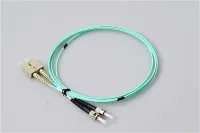
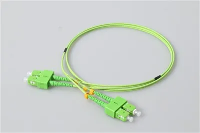
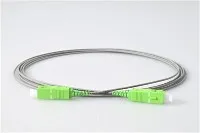
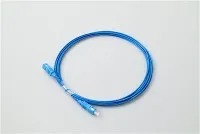
The patch cord - The fiber cable itself. Single-mode cords (typically with a yellow jacket, 9/125μm) for long distances; multimode (orange or aqua jacket, 50/125μm) for shorter, high-speed runs. Lengths are available from 0.5m to 500m+ depending on your needs. (Browse patch cord options →)
The connectors - What's on each end of your patch cord. In the vast majority of modern deployments, you'll use LC connectors - they're small, reliable, and have become the de facto standard in data centers and enterprise environments. Older telecom installations may use SC (larger, push-pull) or FC (screw-type). High-density deployments - think spine-leaf architectures with lots of parallel links - use MPO/MTP multi-fiber connectors that pack 8, 12, or 24 fibers into a single connection point.
Adapters and panels - Fiber optic adapters (also called couplers) sit inside your patch panel or ODF and join two connectors together. You need them whenever two patch cords meet - one coming from the NIC, one going to the trunk cable or another device.
Pigtails - If you're doing structured cabling with fusion splicing, fiber pigtails are short pre-terminated fibers that get spliced to your trunk cable on one end and plug into an adapter panel on the other. They're a standard component in ODF (optical distribution frame) installations.
One thing that trips people up: connector cleanliness. A fingerprint on a fiber endface can cause measurable signal loss. Dust, even invisible to the naked eye, can drop a 10G link entirely. Always clean fiber connectors with proper tools (lint-free wipes and IPA, or one-click cleaners) before mating them, and keep dust caps on any port that doesn't have a cable in it.
Installing a Network Adapter
I won't belabor this - installation is straightforward for anyone who's opened a computer case before.
PCIe card (wired or Wi-Fi): Power off, unplug, open the case, find an empty PCIe slot, remove the slot bracket, seat the card, screw it down, close the case, power on. Windows and Linux will auto-detect most modern NICs. For best performance, grab the latest driver from the manufacturer's website rather than relying on the generic one your OS installs. Intel and Broadcom both maintain up-to-date driver portals.
USB adapter: Plug it in. Wait for the OS to recognize it. Done. If it's a Wi-Fi adapter and your OS doesn't have a built-in driver (rare on Windows 10/11, more common on Linux), download one from the manufacturer. Pro tip: some cheap no-brand USB Wi-Fi adapters use chipsets with awful Linux driver support. If you run Linux, check chipset compatibility before you buy - Mediatek and Intel chipsets tend to be the best supported.
Fiber NIC: Install the PCIe card as above, then insert the SFP transceiver (there's a small latch - don't force it). Connect the fiber patch cord into the transceiver until it clicks. Verify the link LED on the card and check your OS network settings for the connection. If there's no link, nine times out of ten the issue is a dirty connector or the wrong transceiver type for your fiber.
Troubleshooting: When Things Go Wrong
Rather than list every possible scenario, here are the problems I see people hit most often - and the fixes that actually resolve them.
"No connection at all"
Start physical, work your way up. Is the cable seated properly? If it's Ethernet, does the port LED light up on both ends? Try a different cable - bad Ethernet cables are absurdly common and are the single most frequent cause of connection issues I've seen. For fiber connections, inspect and clean the connectors, and make sure the transceiver is fully seated. After you've ruled out the physical layer, check Device Manager (Windows) or ip link (Linux) to see if the OS recognizes the adapter. A yellow warning icon in Device Manager means a driver problem. Reinstall or update.
"It connects, but the speed is wrong"
This usually means auto-negotiation settled on a lower speed than expected. If you have a Gigabit adapter but Device Manager shows a 100 Mbps link speed, the cable is almost always the culprit. Cat5 (not Cat5e) maxes out at 100 Mbps. Damaged cables - especially ones with kinked or crushed pairs - can also force a downgrade. Check the switch port too; some managed switches have per-port speed limits that might be misconfigured.
"It works but keeps disconnecting"
For Wi-Fi: Check Windows power management settings first. Go to Device Manager → your Wi-Fi adapter → Properties → Power Management → uncheck "Allow the computer to turn off this device to save power." This one setting causes a staggering number of intermittent Wi-Fi drops, and it's enabled by default on most laptops. If that doesn't fix it, try switching from the 2.4 GHz band to 5 GHz or 6 GHz (less congestion), or change your router's Wi-Fi channel to avoid overlap with neighbors.
For wired: Intermittent drops on copper Ethernet often mean a cable with marginal performance - it works when everything is ideal but drops when conditions change slightly (temperature, nearby EMI sources). Replace the cable with a known-good one and test. For fiber, intermittent drops can indicate a dirty connector, a fiber bend that's exceeding the minimum bend radius, or a transceiver approaching end-of-life. An optical power meter reading can confirm whether you're getting enough signal strength.
"Adapter not recognized by the OS"
Reseat the card. Power all the way off (not sleep - full shutdown, ideally unplug the PSU for a few seconds), open the case, pull the card, reseat it firmly in the PCIe slot. If that doesn't work, try a different PCIe slot. On rare occasions, a BIOS/UEFI setting may have the slot disabled or there's a conflict with another card. Also check whether your BIOS has a setting to disable the onboard NIC - if you're trying to use the built-in adapter and it doesn't show up, this is a likely cause.
Maintenance Is Boring but It Matters
Three things keep a network adapter running well over the long haul:
Keep drivers current. Not every driver update is critical, but security patches and performance fixes do accumulate. Check for updates every few months, or set them to auto-update if your manufacturer supports it. Intel's Driver & Support Assistant is decent for this.
Keep it cool. Internal NICs - especially 10G and higher - generate heat. Make sure your case has reasonable airflow. I've seen 10G NICs thermal-throttle in poorly ventilated cases, cutting throughput in half with no error messages to explain it.
Keep fiber clean. If you have fiber connections, this is the single biggest maintenance item. Use dust caps on every unused port. Clean connectors every time you unplug and replug them. For permanent installations, periodic optical power meter readings (annually is fine for most setups) help catch degradation before it causes outages. An optical time-domain reflectometer (OTDR) test is the gold standard for diagnosing fiber cable issues, but that's specialized equipment - your cabling contractor or ISP can handle it.
FAQ
Q: What's the difference between a NIC and a router?
A: The NIC connects your device to the network. The router connects networks together (typically your local network to your ISP's network) and makes routing decisions about where packets should go. Your NIC talks to the router, not the internet directly.
Q: Can I install more than one network adapter?
A: Absolutely. It's common in servers (for redundancy, link aggregation, or separating management and data traffic onto different subnets) and not unusual in desktops either. You can have a built-in Ethernet NIC, a PCIe fiber card, and a USB Wi-Fi adapter all running simultaneously if your use case calls for it.
Q: Is "Ethernet" the same as "wired"?
A: Ethernet is a protocol, not a cable type. You can run Ethernet over copper (Cat5e, Cat6, Cat6a) or over fiber. When people say "Ethernet cable," they usually mean a copper patch cable with RJ-45 connectors - but technically, a fiber patch cord carrying 10G Ethernet is also "Ethernet."
Q: What's the best adapter for gaming?
A: A wired Gigabit connection. That's it. I know marketing for gaming-branded network cards suggests otherwise, but for latency purposes, any decent Gigabit NIC (including the one already on your motherboard) will perform identically to a "gaming" NIC that costs three times as much. What matters far more is your connection to the router: use Ethernet instead of Wi-Fi, use Cat5e or better cable, and make sure your router isn't the bottleneck. If you absolutely must use Wi-Fi, get a Wi-Fi 6E adapter with an external antenna - the 6 GHz band is meaningfully less congested than 5 GHz in dense apartment buildings.
Q: Do I need special equipment for fiber networking?
A: Yes, but it's not as exotic as it sounds. You need a NIC with an SFP port (or a switch that has SFP ports), a transceiver module matched to your fiber type and distance, and fiber patch cords with the right connectors. For structured cabling, add fiber adapters, pigtails, and a patch panel. If you're not sure which connector type to choose (LC vs. SC vs. MPO), LC duplex is the safe default for almost everything modern.
Q: Why does my Wi-Fi adapter keep disconnecting?
A: Check three things in this order: (1) Disable power management for the adapter in Device Manager, (2) update the driver, (3) switch to the 5 GHz or 6 GHz band. If none of those help, the issue is likely environmental - too many competing Wi-Fi networks, physical obstructions, or distance from the router. A Wi-Fi survey tool (like NetSpot or WiFi Analyzer) can show you exactly what's going on with signal strength and channel congestion in your space.
Q: How long do network adapters last?
A: In my experience, quite a long time. Internal NICs rarely fail - they have no moving parts, and most will outlive the motherboard they're attached to. The exception is fiber transceivers, which are laser-based components with a finite lifespan (typically rated for 50,000–100,000 hours, or roughly 6–11 years of continuous operation). If a previously stable fiber link starts showing increased errors, a dying transceiver is a common cause.